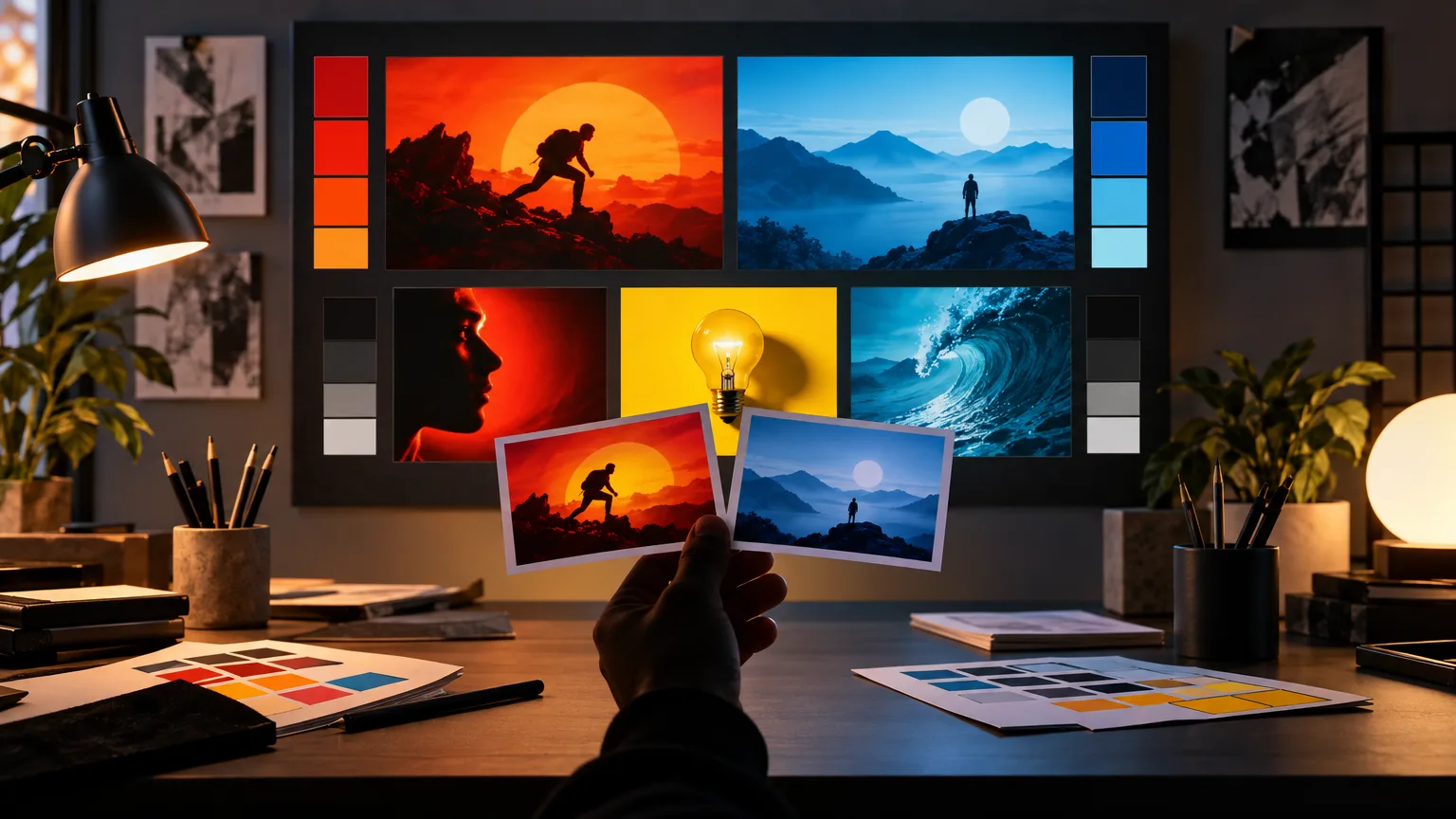

The recommended YouTube thumbnail dimensions
Use a 16:9 landscape canvas for a standard YouTube video thumbnail. A practical working size is 1280 × 720 pixels, while a larger 1536 × 864 canvas also preserves the same 16:9 composition for high-quality design workflows. The important rule is the ratio: the artwork should be created as a wide frame from the beginning.
Keep the final file in a common web image format and check the file size before uploading. Exporting a clean WebP or high-quality JPEG can keep the image fast to load while preserving the contrast and type details that matter in a thumbnail.
- Aspect ratio: 16:9 landscape.
- Common working size: 1280 × 720 pixels.
- High-resolution working size: 1536 × 864 pixels.
- Use one final image with no accidental portrait or square canvas.
What the safe zone means
YouTube does not add a permanent overlay that covers the same part of every thumbnail, but previews can be displayed at very different sizes and in different layouts. A safe zone is therefore a design habit: keep the face, product, and headline away from the extreme edges so the idea remains readable when the card is resized or partially surrounded by interface elements.
Leave breathing room around text and do not place a critical letter directly against the edge. If your composition uses a large face on the left and a headline on the right, keep both groups comfortably inside the frame rather than pushing them to the border.
Avoid the most common framing mistakes
The most common problem is starting with a square image and forcing it into a wide thumbnail later. That process can cut off faces, hands, product details, or the first and last letters of the headline. Create the image on a 16:9 canvas instead of treating the ratio as a final export step.
Another problem is designing text too close to the bottom edge. The image may look correct in an editor but become difficult to read when reduced in the home feed. Use a short headline, strong contrast, and a clear margin around the entire text block.
- Do not stretch a square image to fill a 16:9 frame.
- Do not let the headline touch the frame edge.
- Do not hide the main subject behind decorative effects.
- Do not assume desktop size is the only viewing context.
A quick export checklist
Before uploading, open the final file at full size and then preview it as a small card. Confirm that the image is 16:9, the subject is not clipped, the headline is correctly spelled, and the visual promise is clear without extra explanation.
If the thumbnail passes those checks, compare it with the title and opening seconds of the video. The thumbnail should create curiosity, but it should also set an honest expectation for what the viewer will find.